
Help Center
How can we help?
Short videos that show exactly how each Mynawoo feature works.
Getting started
 23 sec
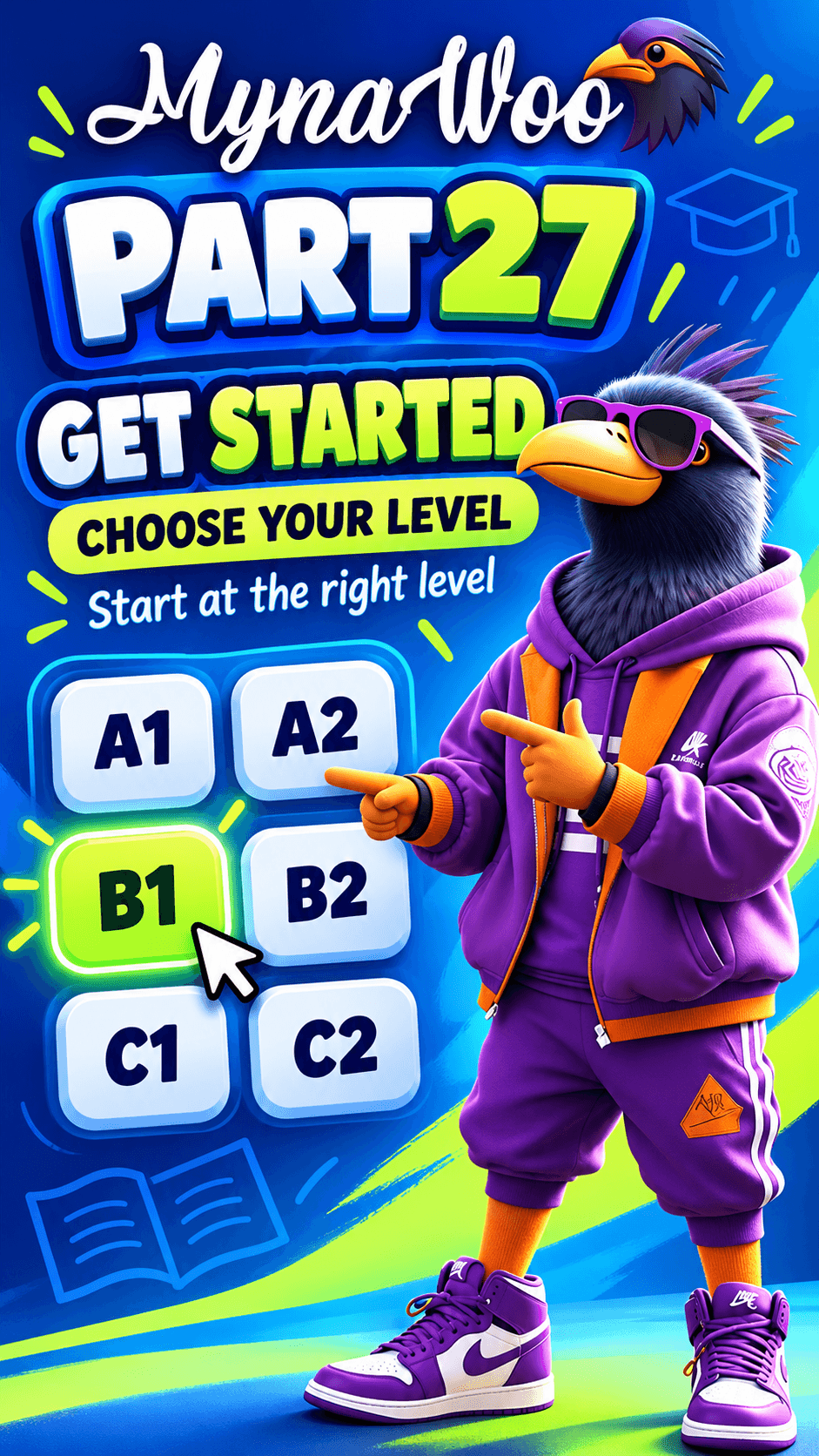
How to get started with Mynawoo
Set up your first course in four taps and land directly in Lesson 1.
 16 sec
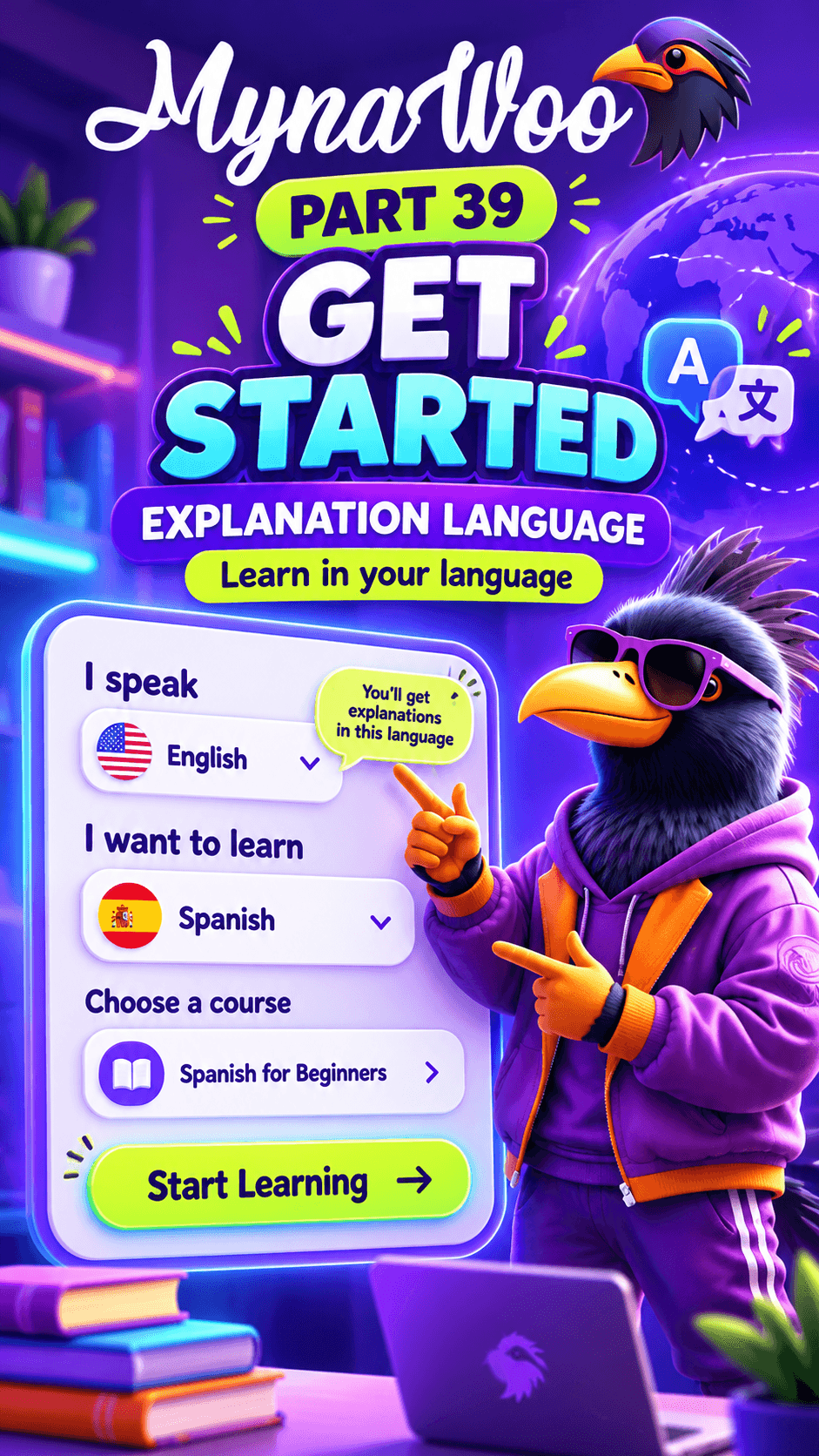
How to choose the language for lesson explanations
Tell Mynawoo which language you understand so every rule and tip is explained in it.
 15 sec
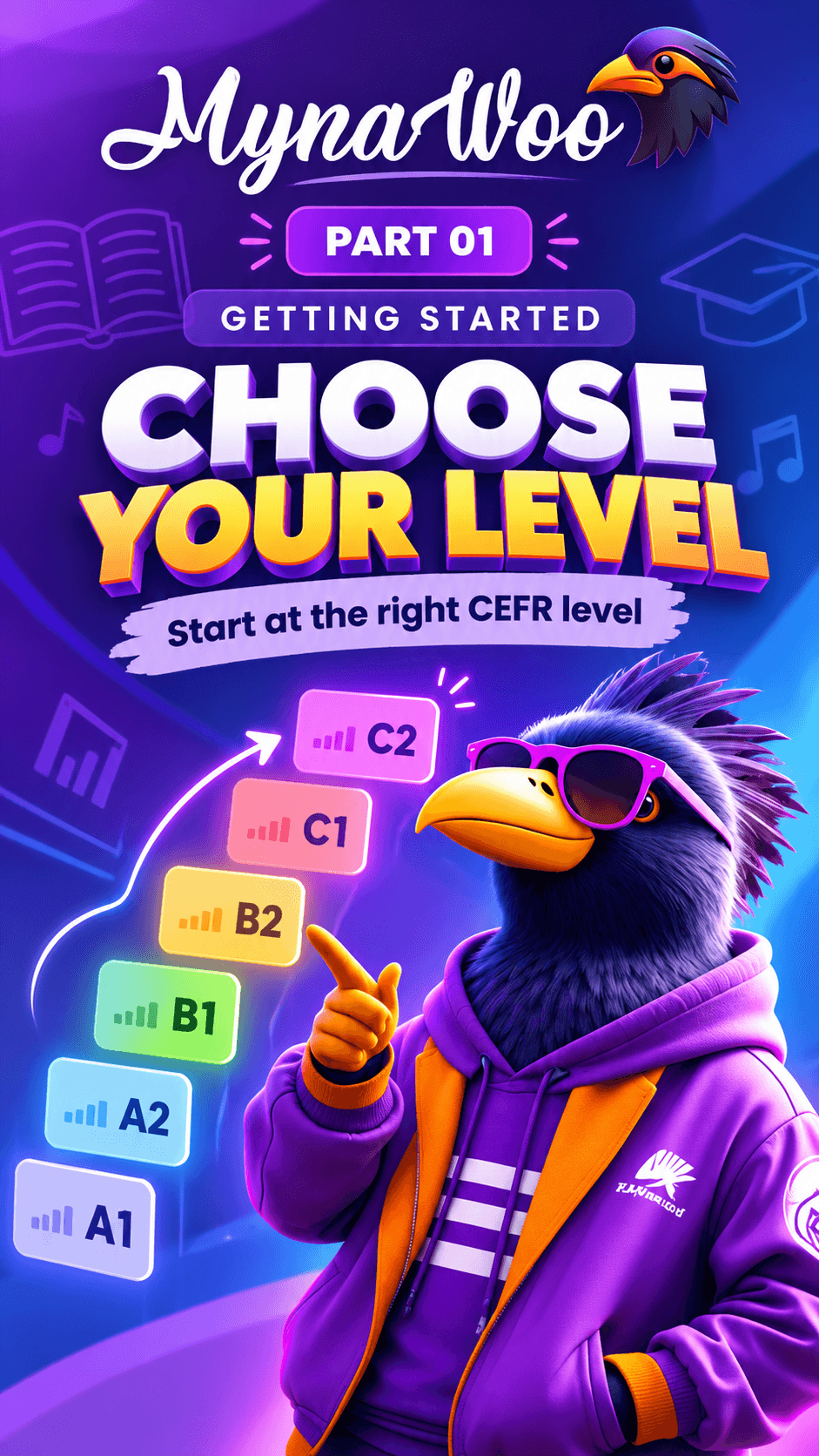
How to choose your starting CEFR level
Start at A1, A2, B1, B2, C1 or C2 instead of repeating what you already know.
Lessons
 15 sec
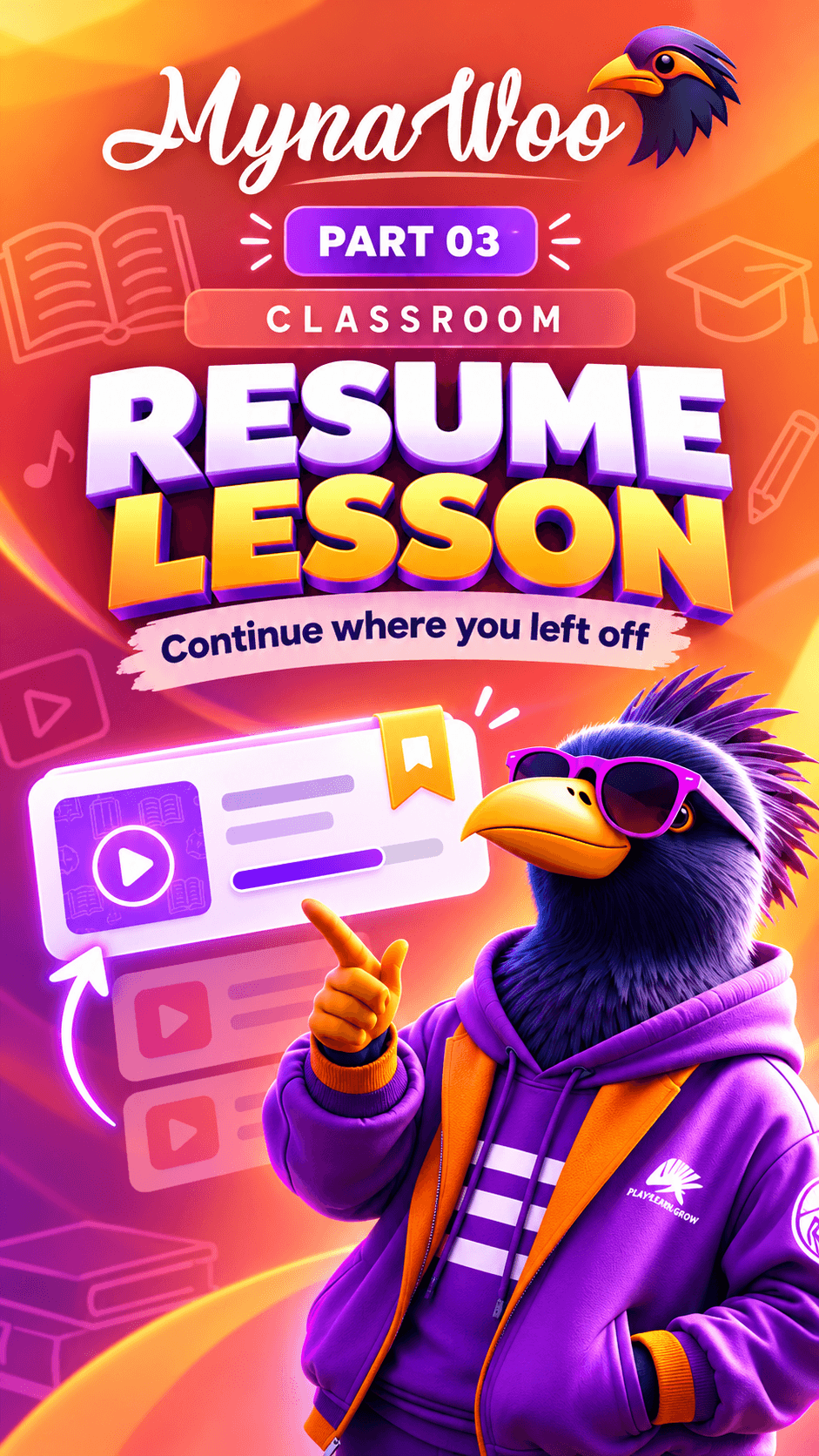
How to continue a lesson where you left off
Tap Continue lesson and Mynawoo reopens your unfinished lesson at the exact screen you stopped.
 19 sec
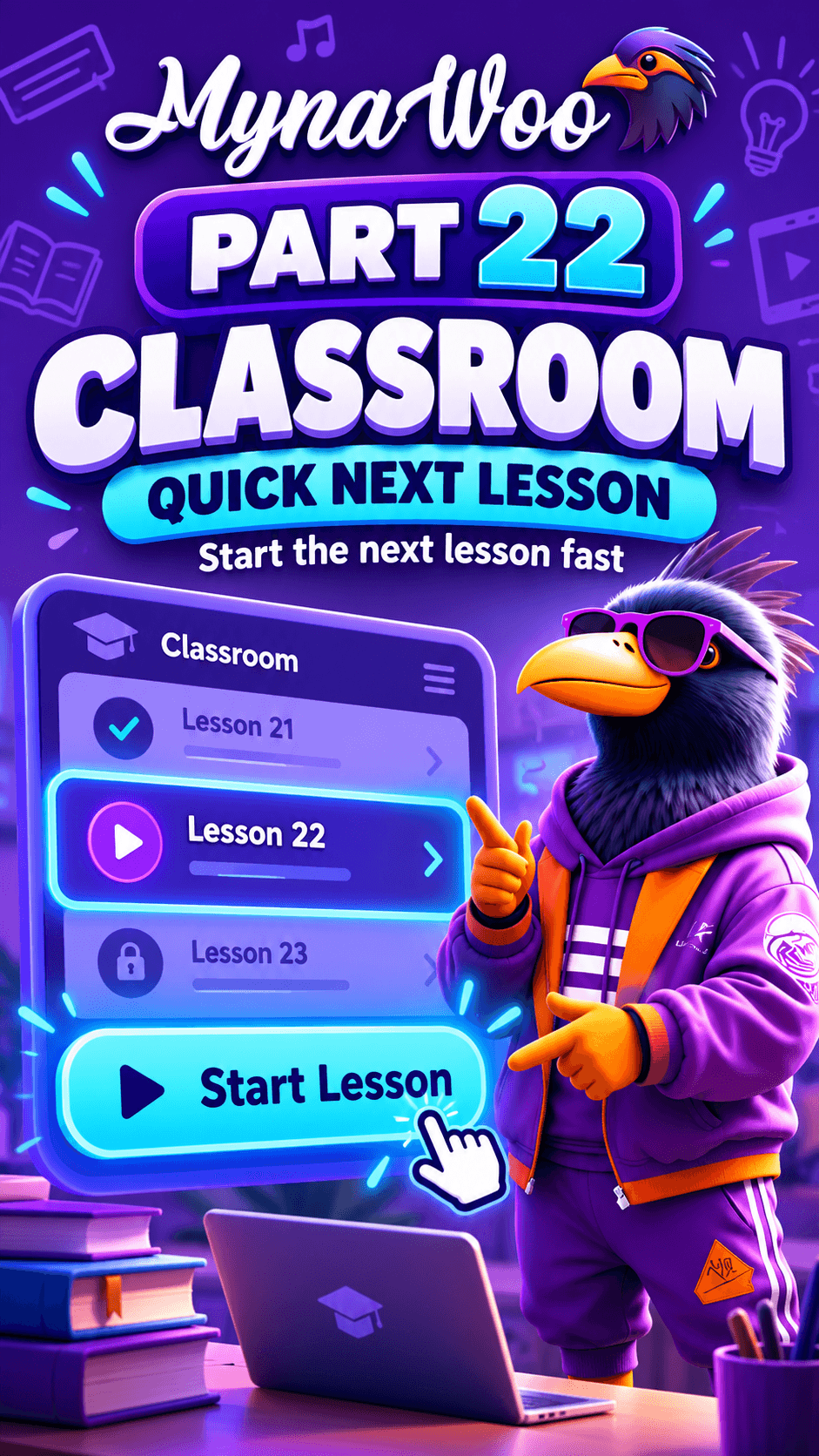
How to start your next lesson in one tap
Use the Next Lesson card in the Classroom to open the following lesson without searching.
 19 sec
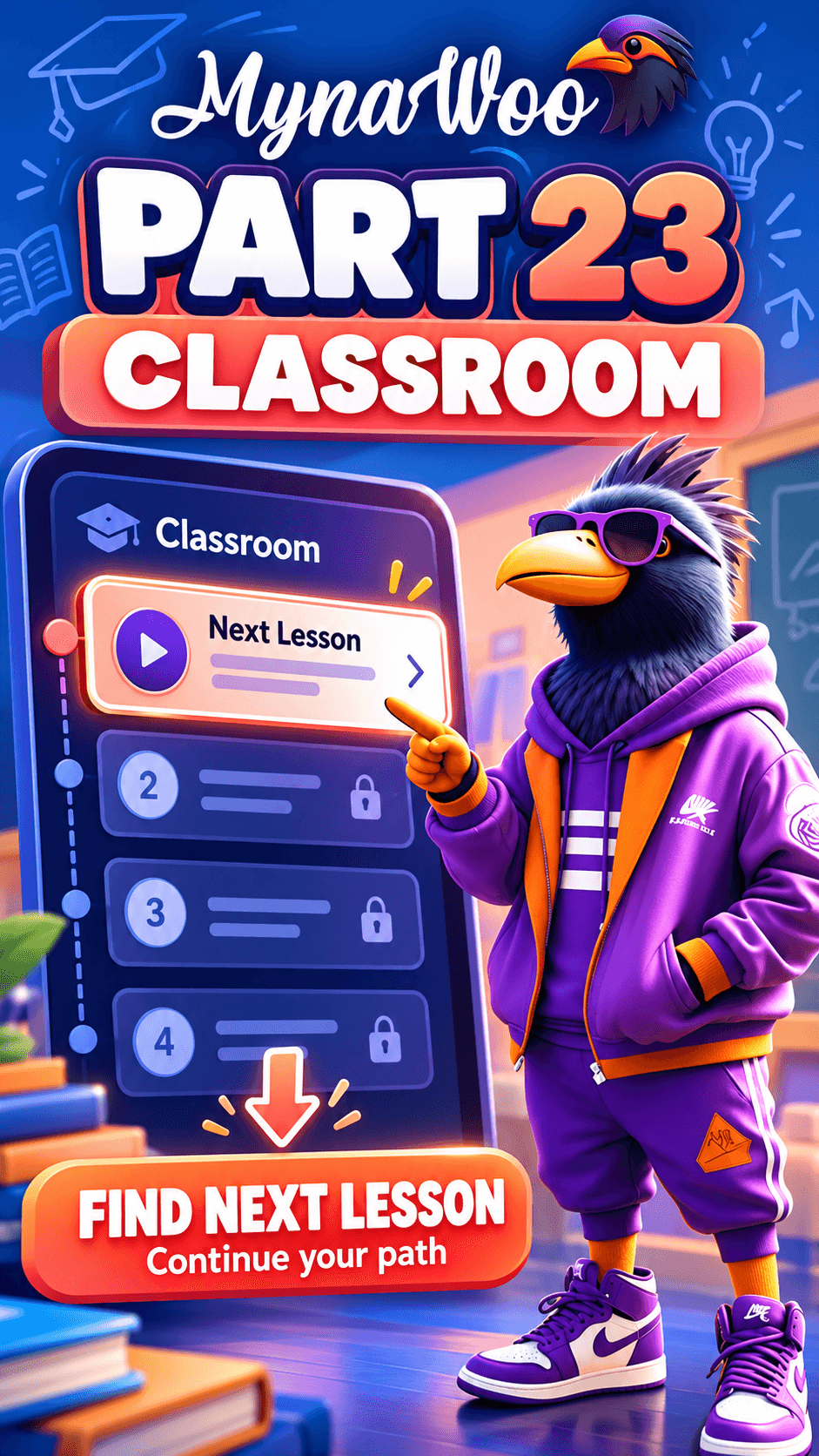
How to find the next lesson in your learning path
Scroll your lesson path to see completed, current and locked lessons, then open the next one.
 16 sec
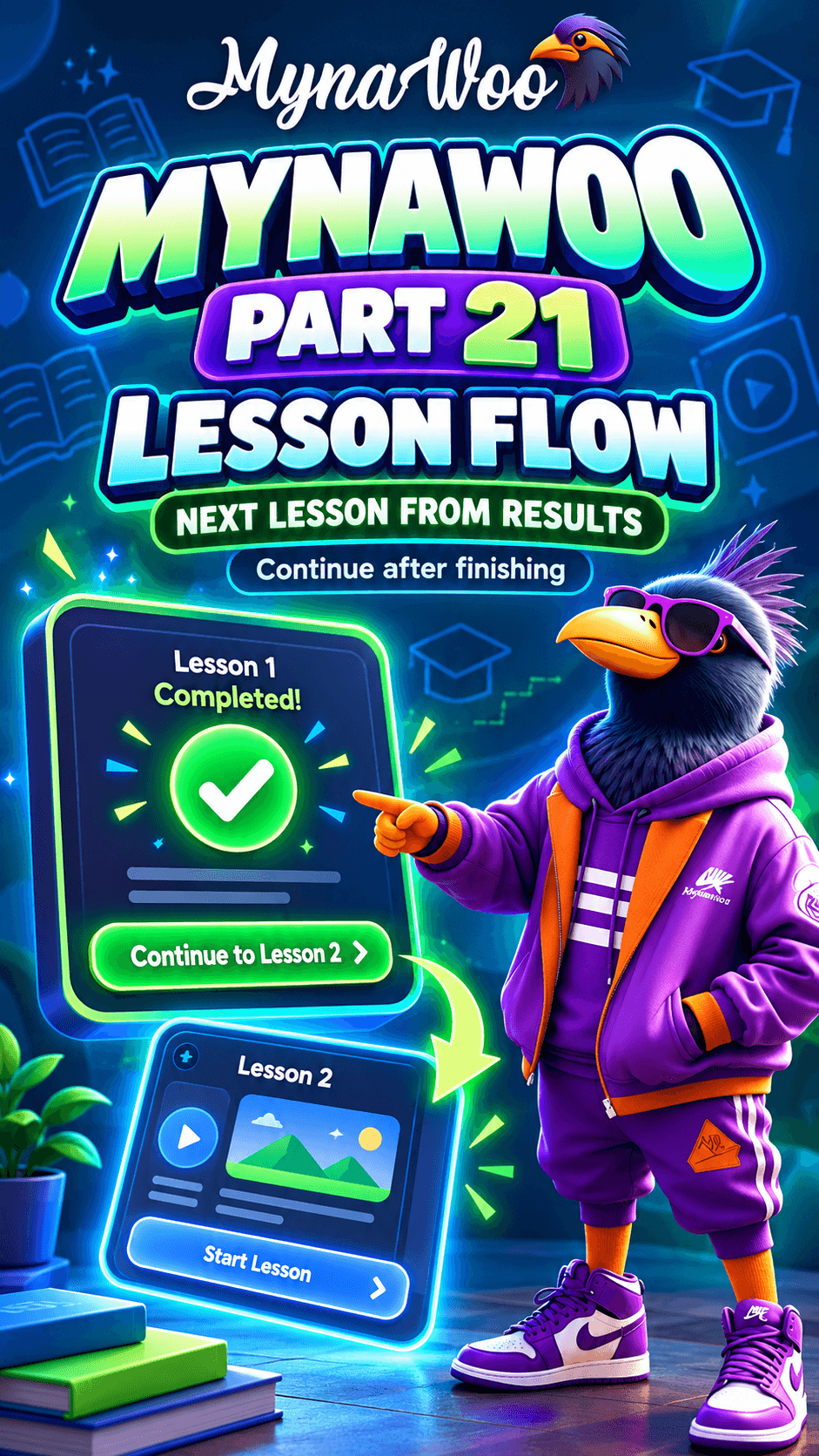
How to go straight to the next lesson after finishing one
On the Lesson complete screen, tap Continue to Lesson to keep your momentum.
 29 sec
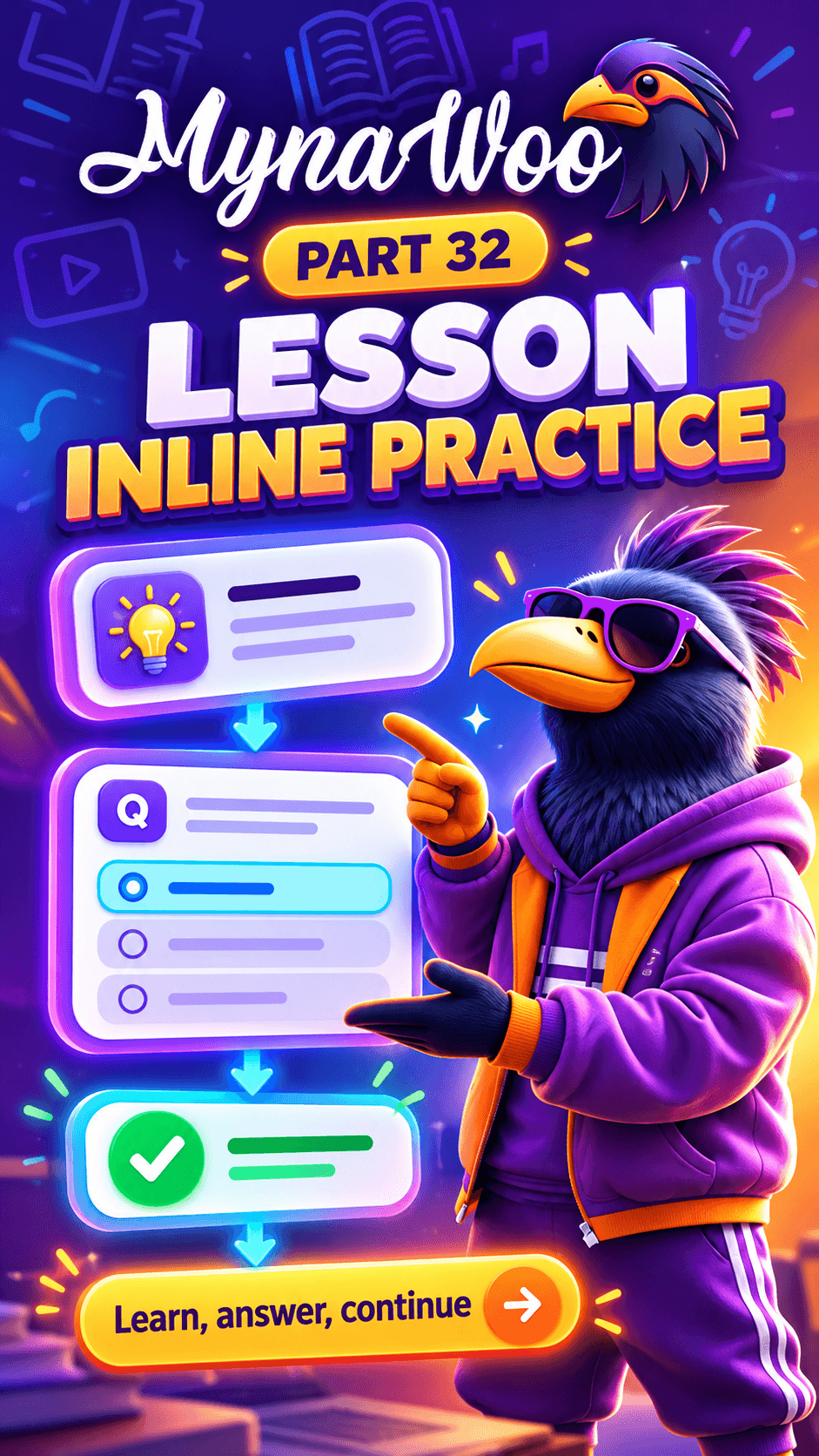
How lessons work: learn, practise, continue
Each lesson teaches a point, checks it with a short exercise, and continues once you understand.
 18 sec
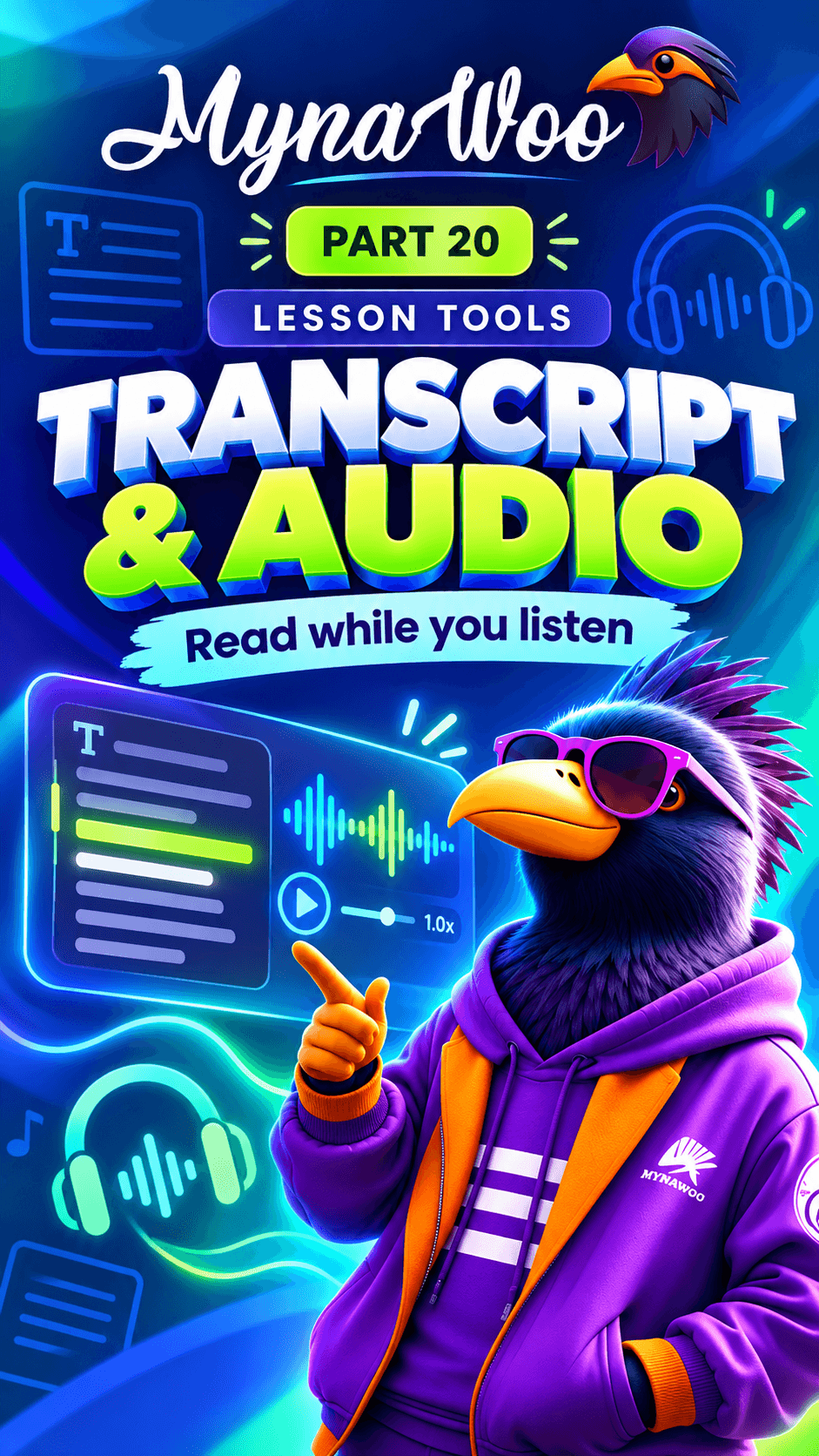
How to read the transcript and adjust lesson audio
Turn on the transcript to read along with the audio, and switch sound effects on or off.
 50 sec
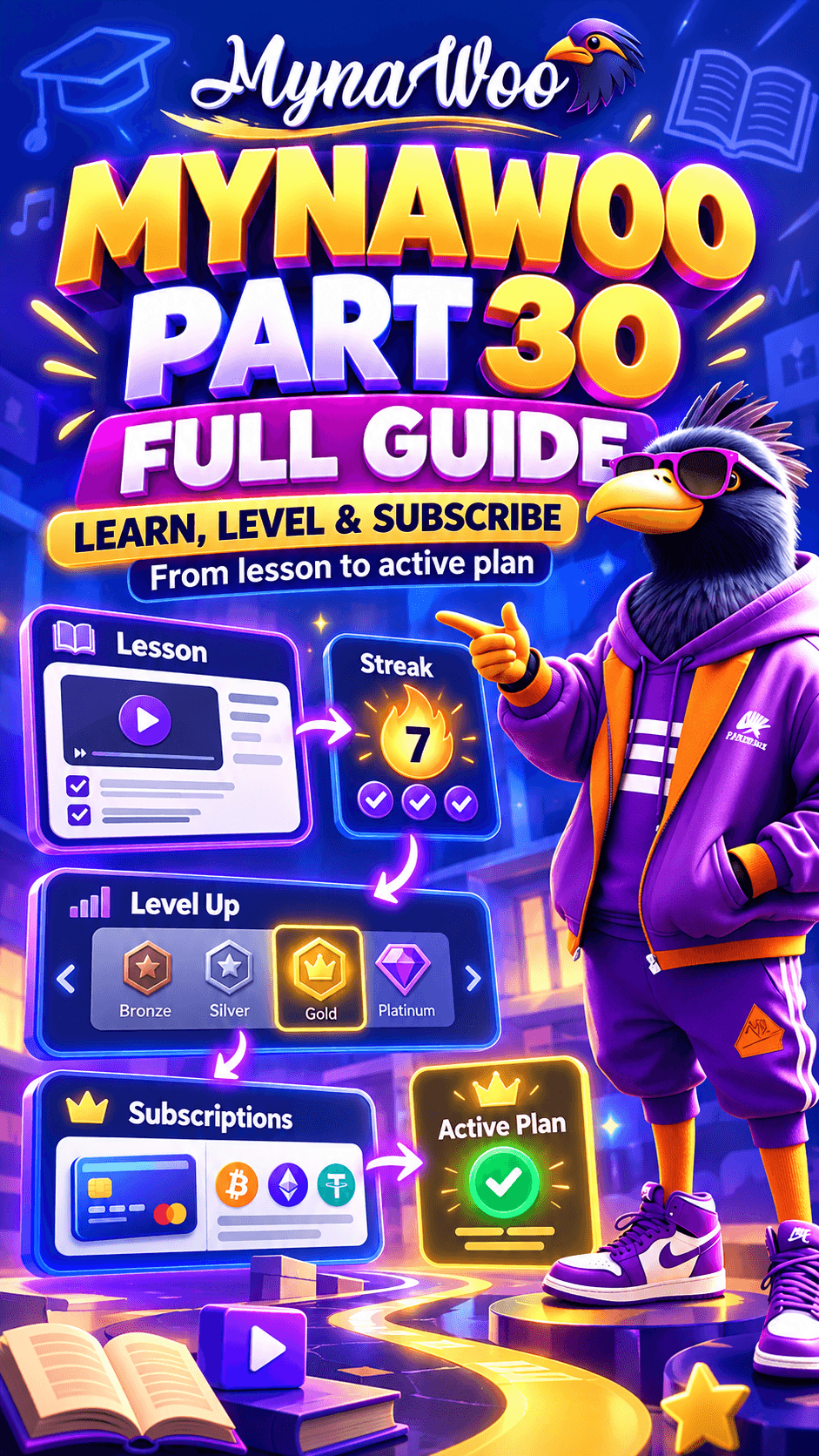
Full walkthrough: a lesson, a level change and activating a plan
Follow one learner through a lesson, a level switch and plan activation in under a minute.
Courses & levels
 18 sec
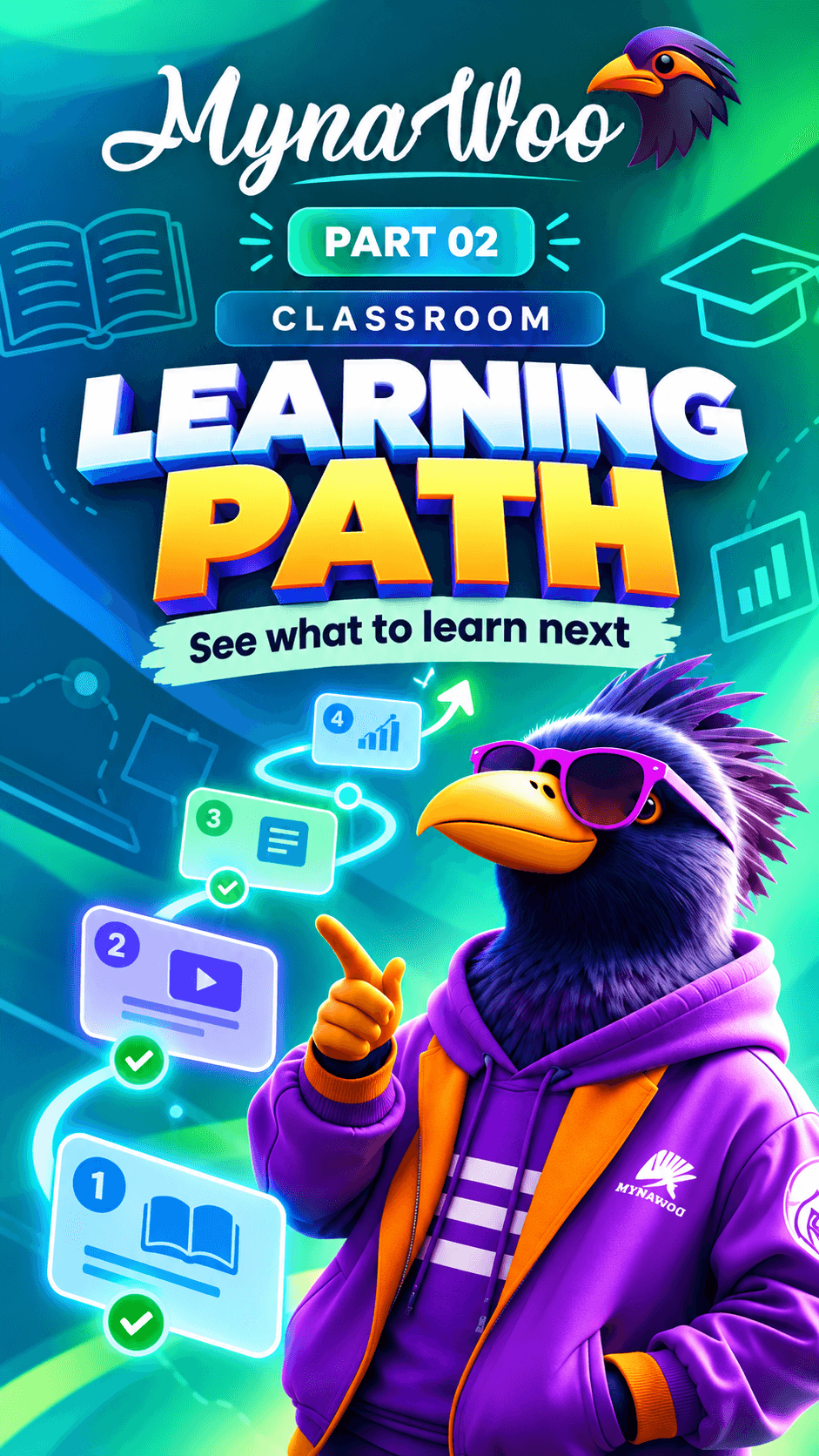
How to see where you are in your learning path
Check your current level, lesson and what comes next across the CEFR levels.
 18 sec
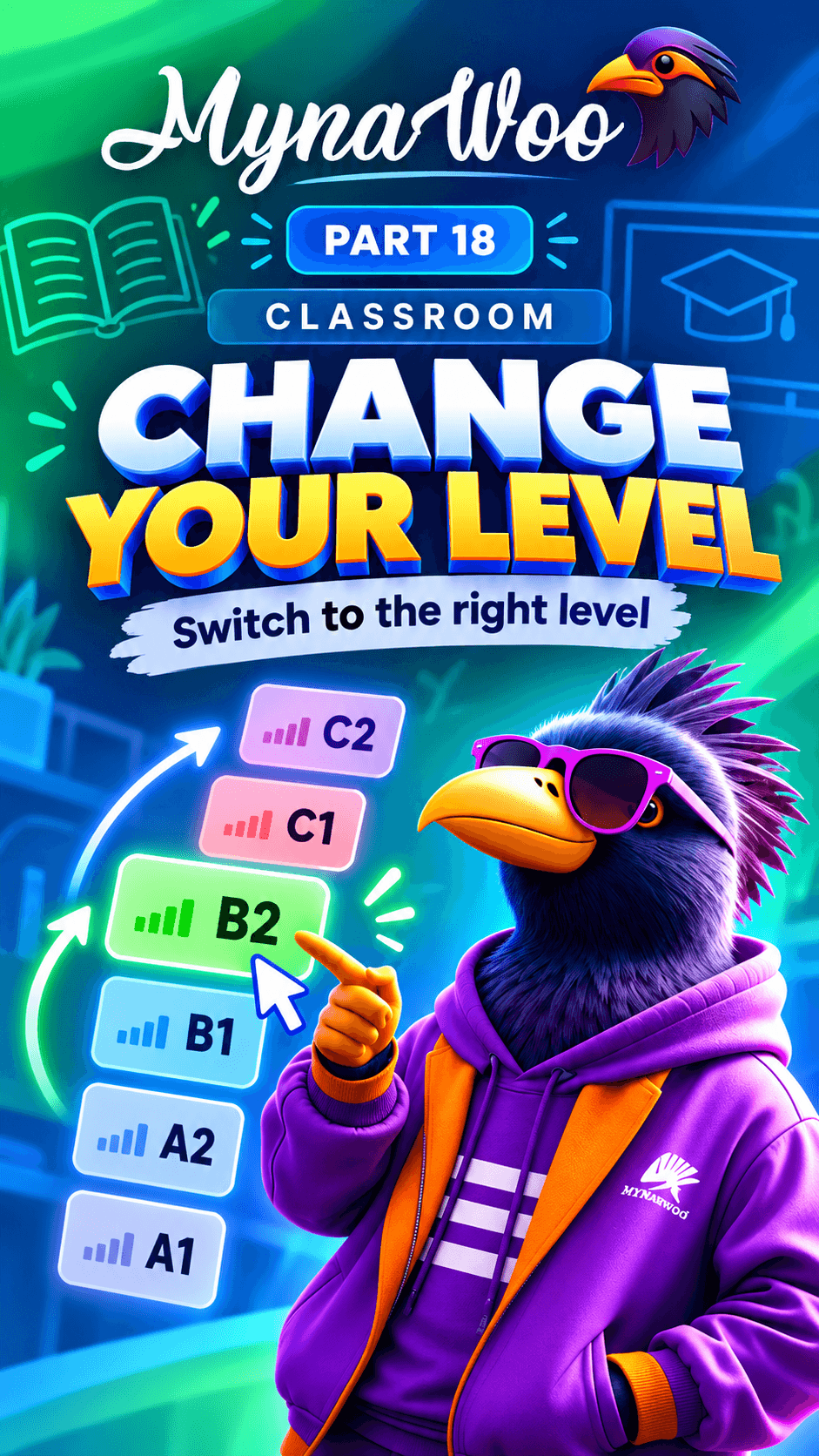
How to change your level if lessons are too easy or too hard
Tap the lesson title, choose another level and start a lesson there.
 31 sec
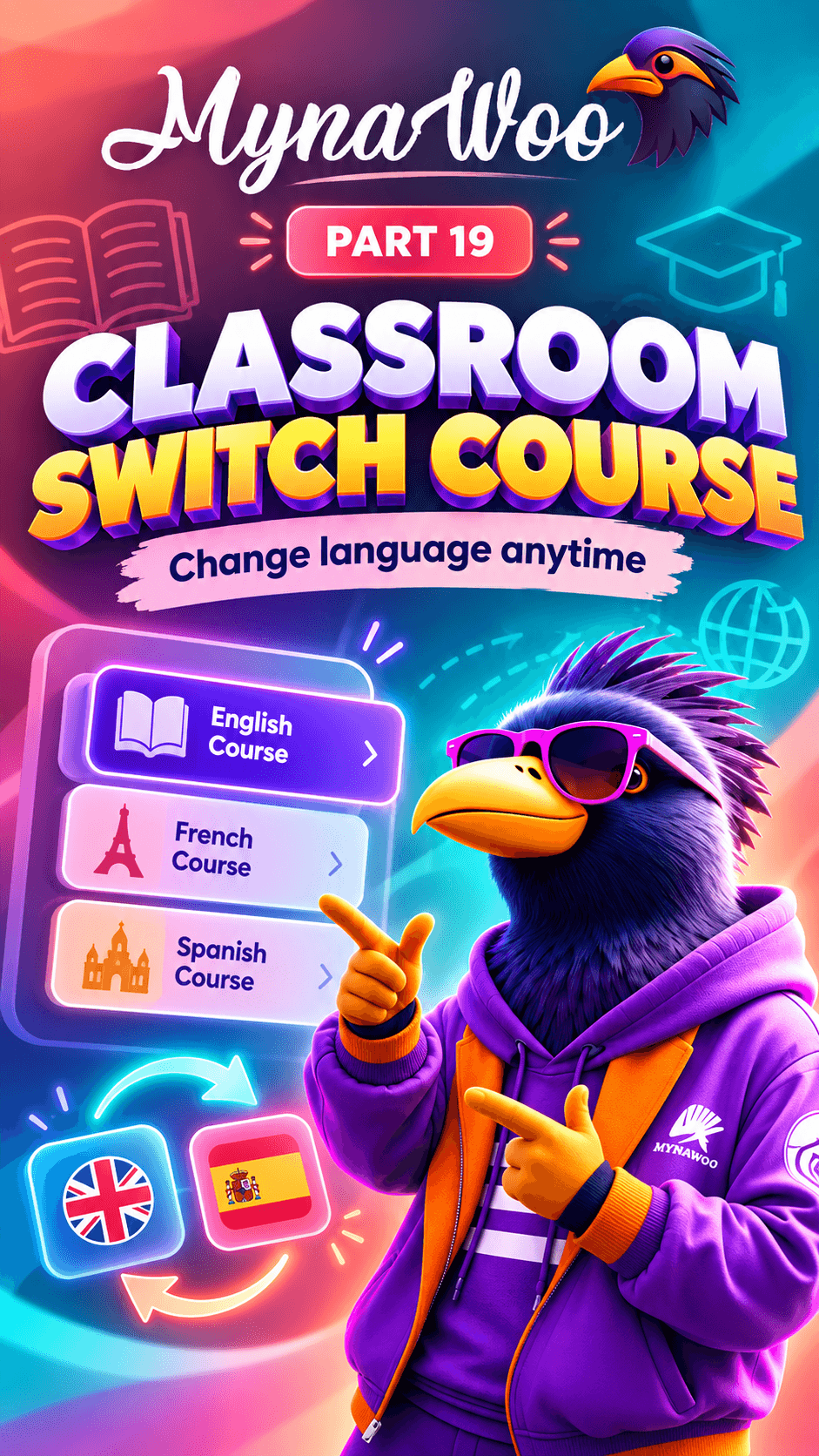
How to switch to another course or language
Move between courses and languages without losing the progress you have made.
Dictionary & flashcards
 13 sec
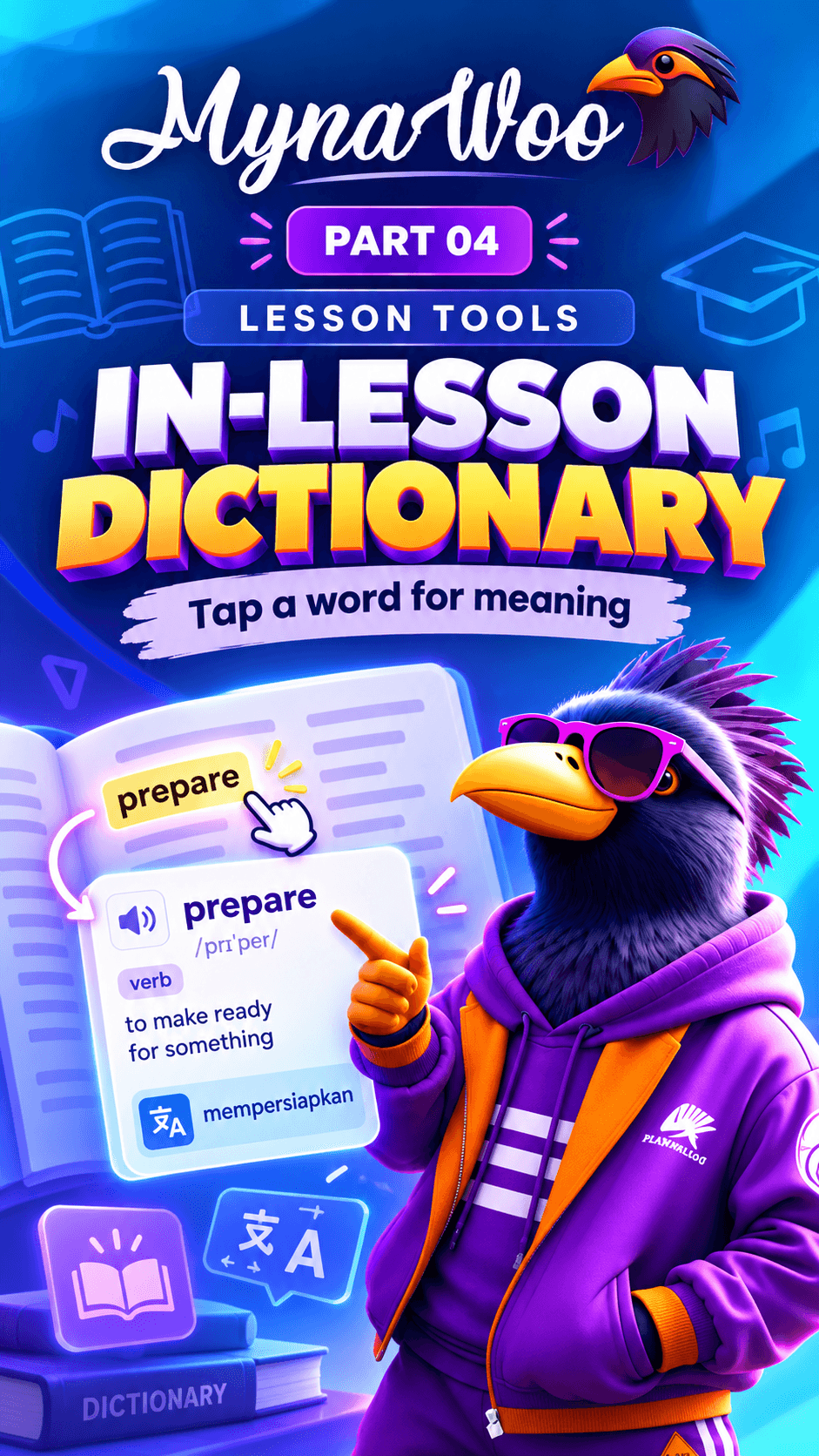
How to look up a word without leaving the lesson
Double-tap any word in a lesson to see its meaning, examples and level.
 16 sec
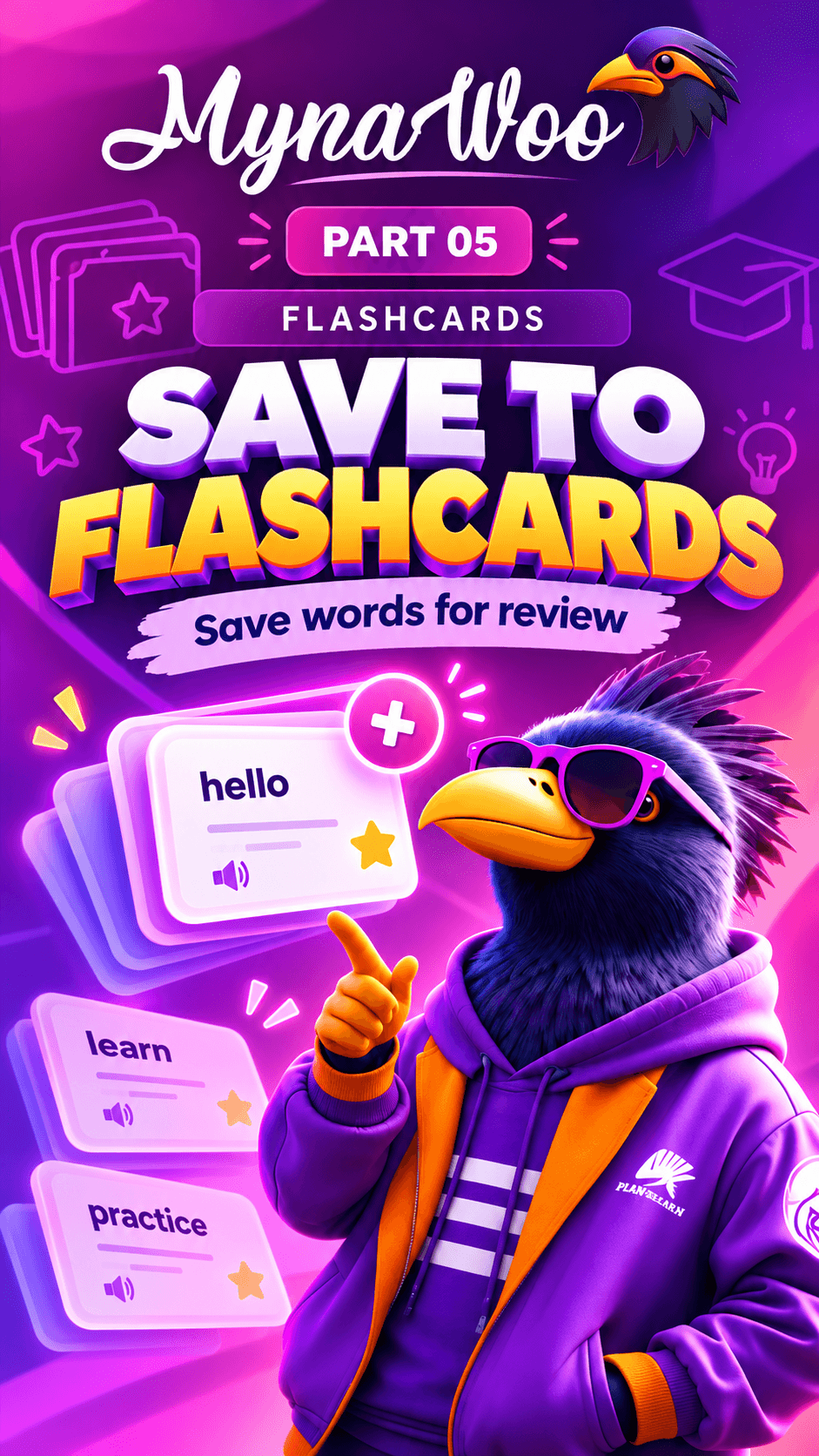
How to save a word to your Letterbox flashcards
Tap Add flash card in the word panel, then find the word in Flashcards.
 14 sec
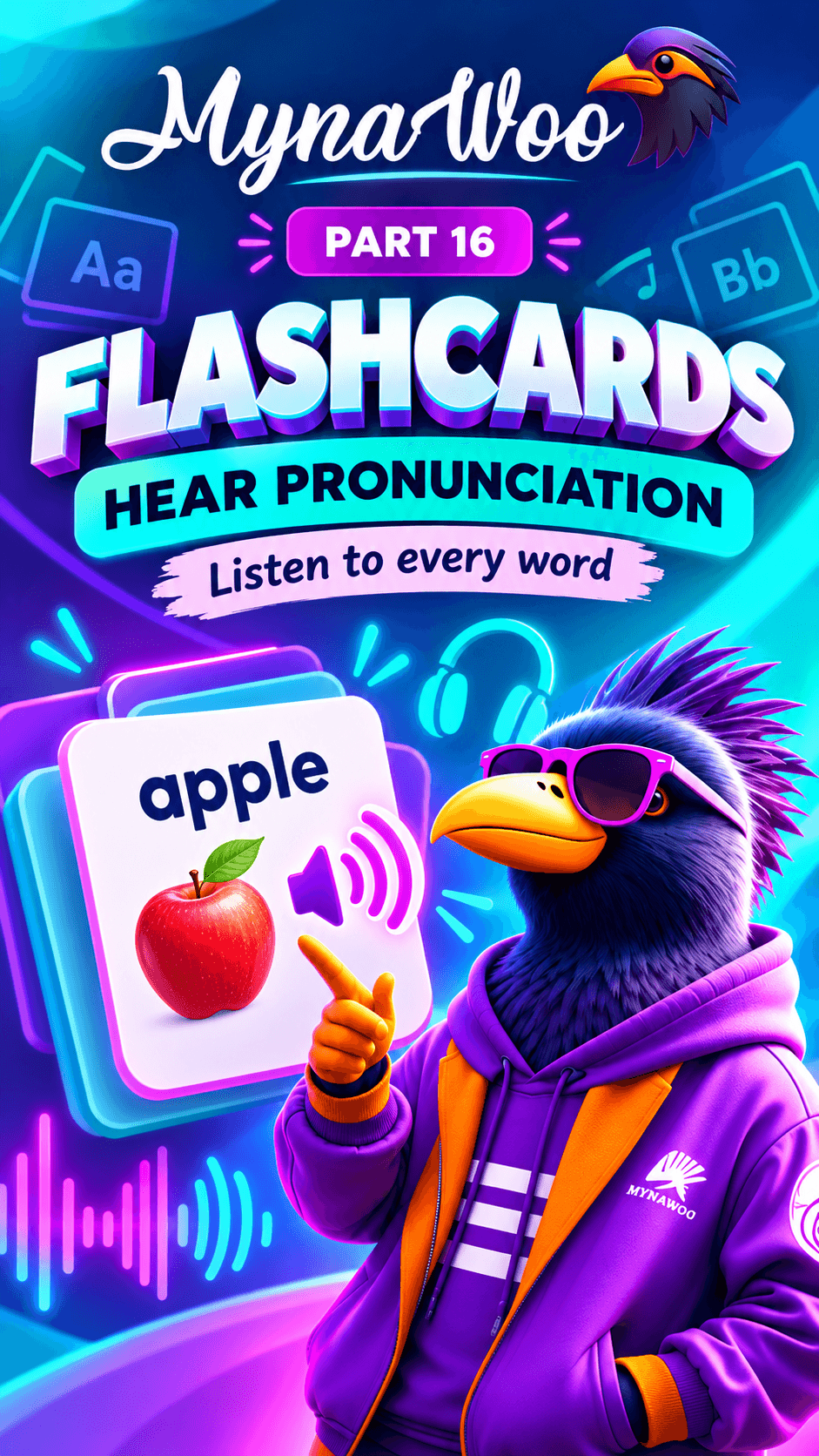
How to hear the pronunciation of a flashcard
Tap the sound icon on any flashcard to listen to the word.
 16 sec
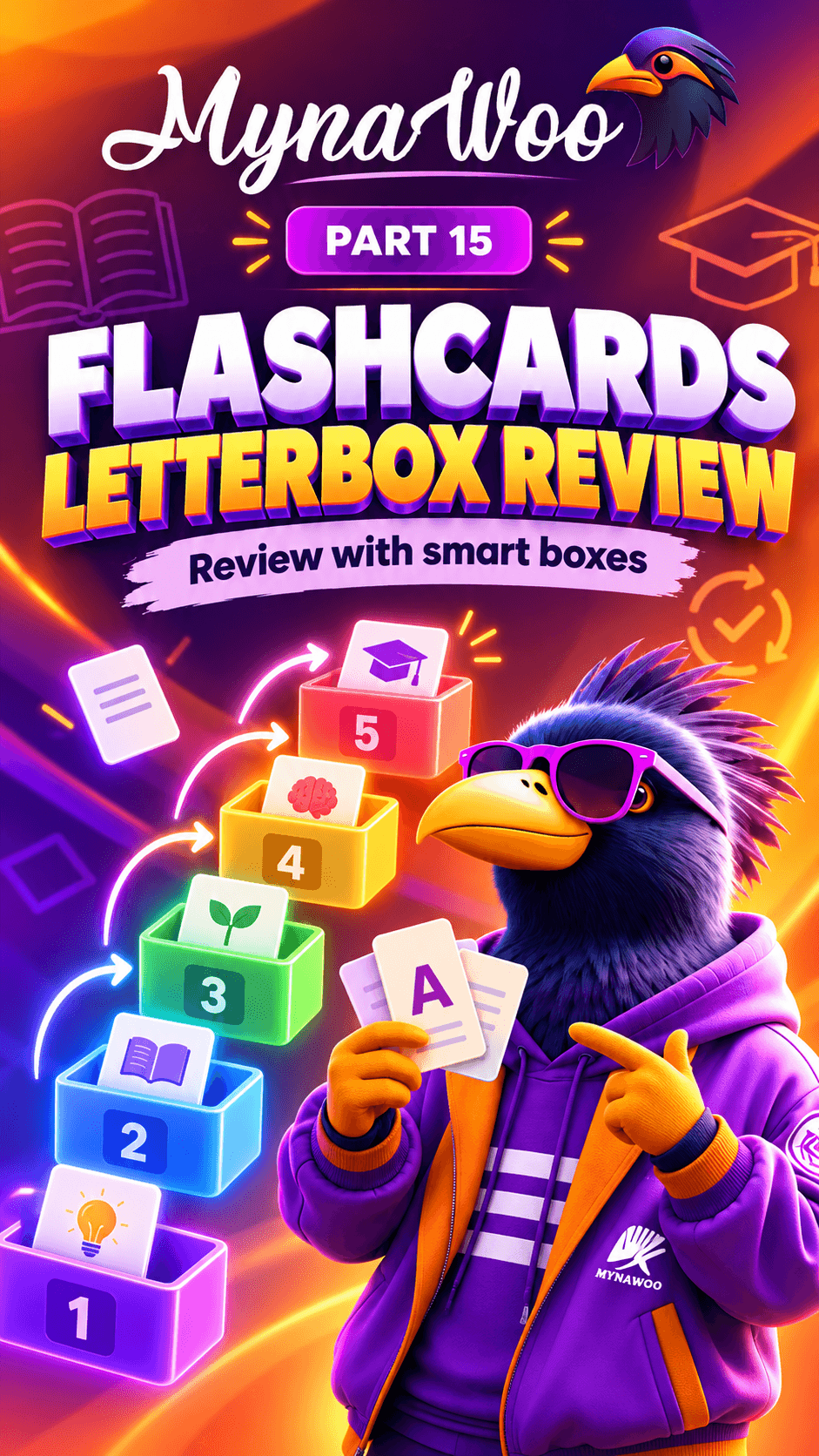
How to review your flashcards
Answer each card honestly: correct cards move up a box, forgotten ones go back to Box 1.
 28 sec
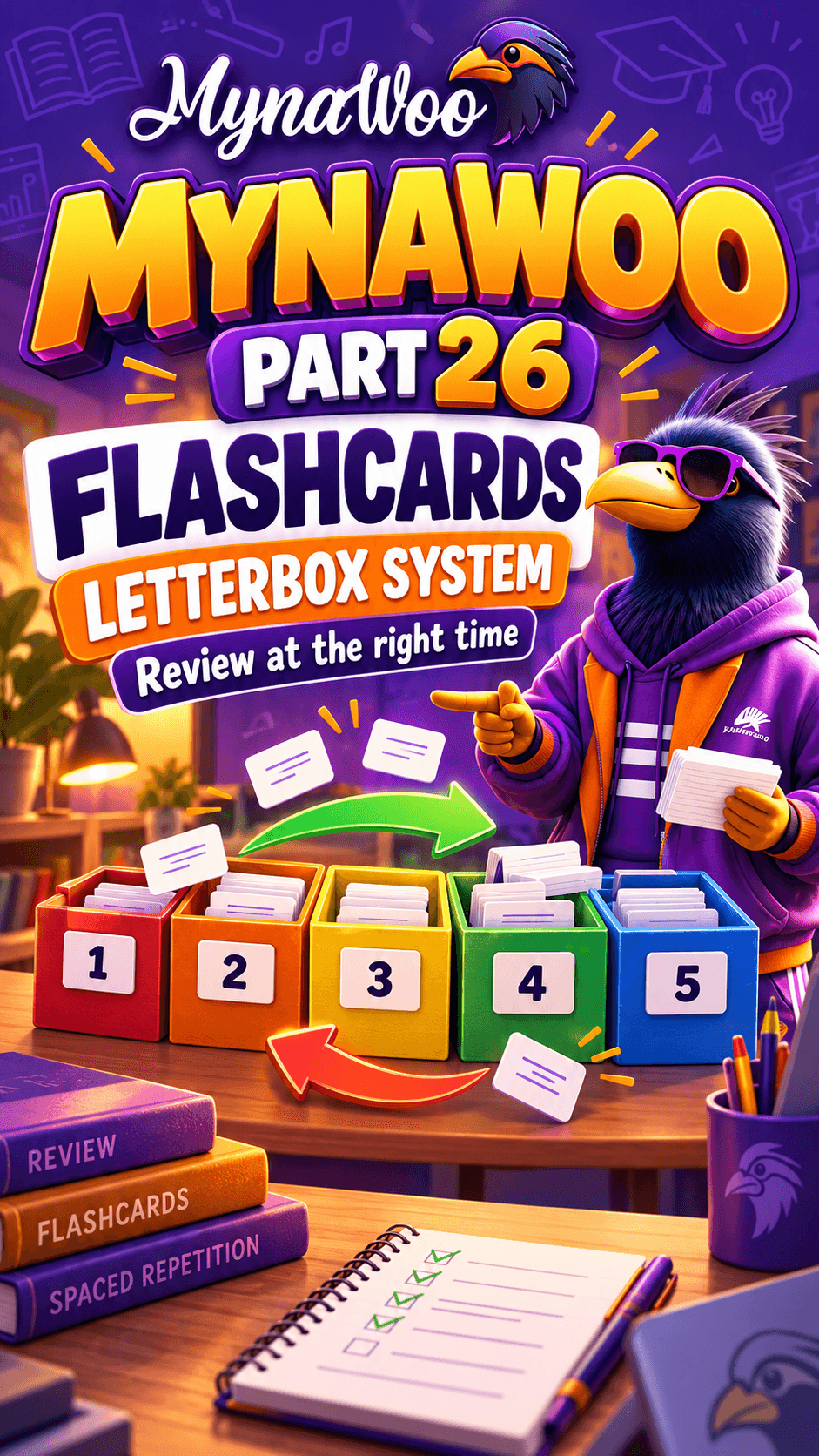
How the five-box Letterbox system works
Understand how saved words move through five boxes so you review them at the right time.
 20 sec
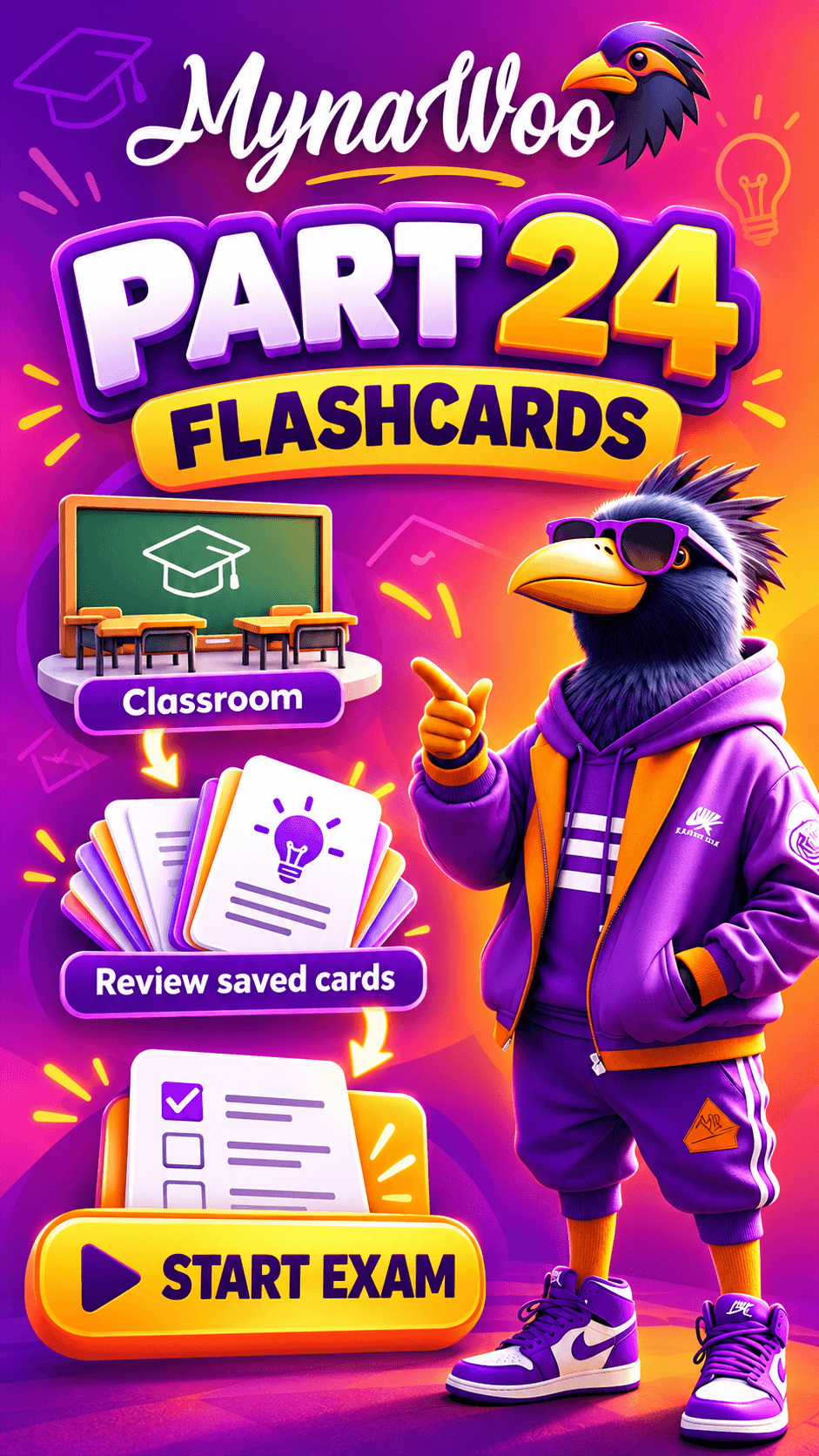
How to start a flashcard review exam from the Classroom
Go from the Classroom to Flashcards and tap Start Exam to test your saved words.
 18 sec
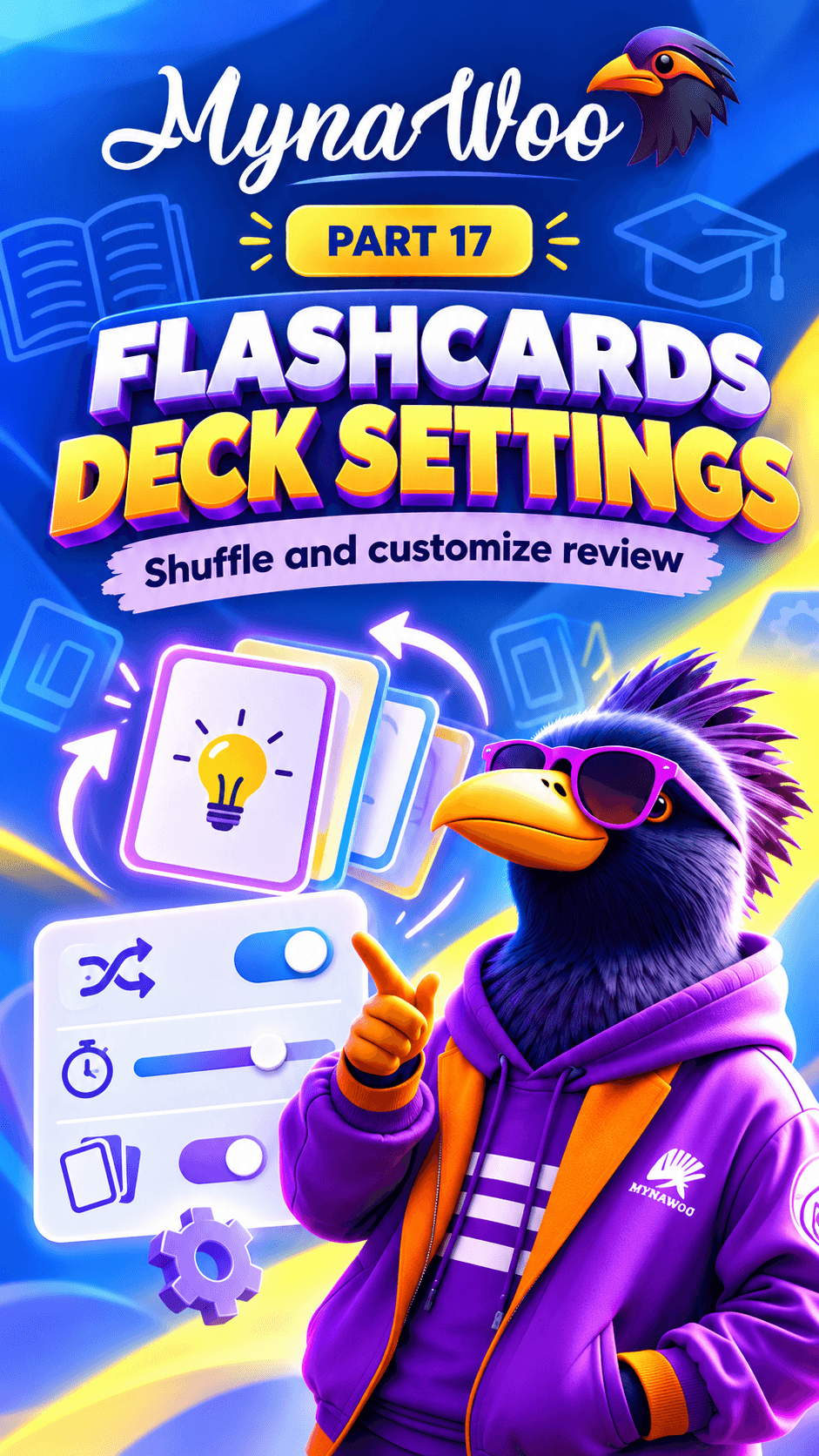
How to shuffle cards and set auto-play speed
Customise your flashcard deck: shuffle the order and adjust auto-play speed.
Skills practice
 17 sec
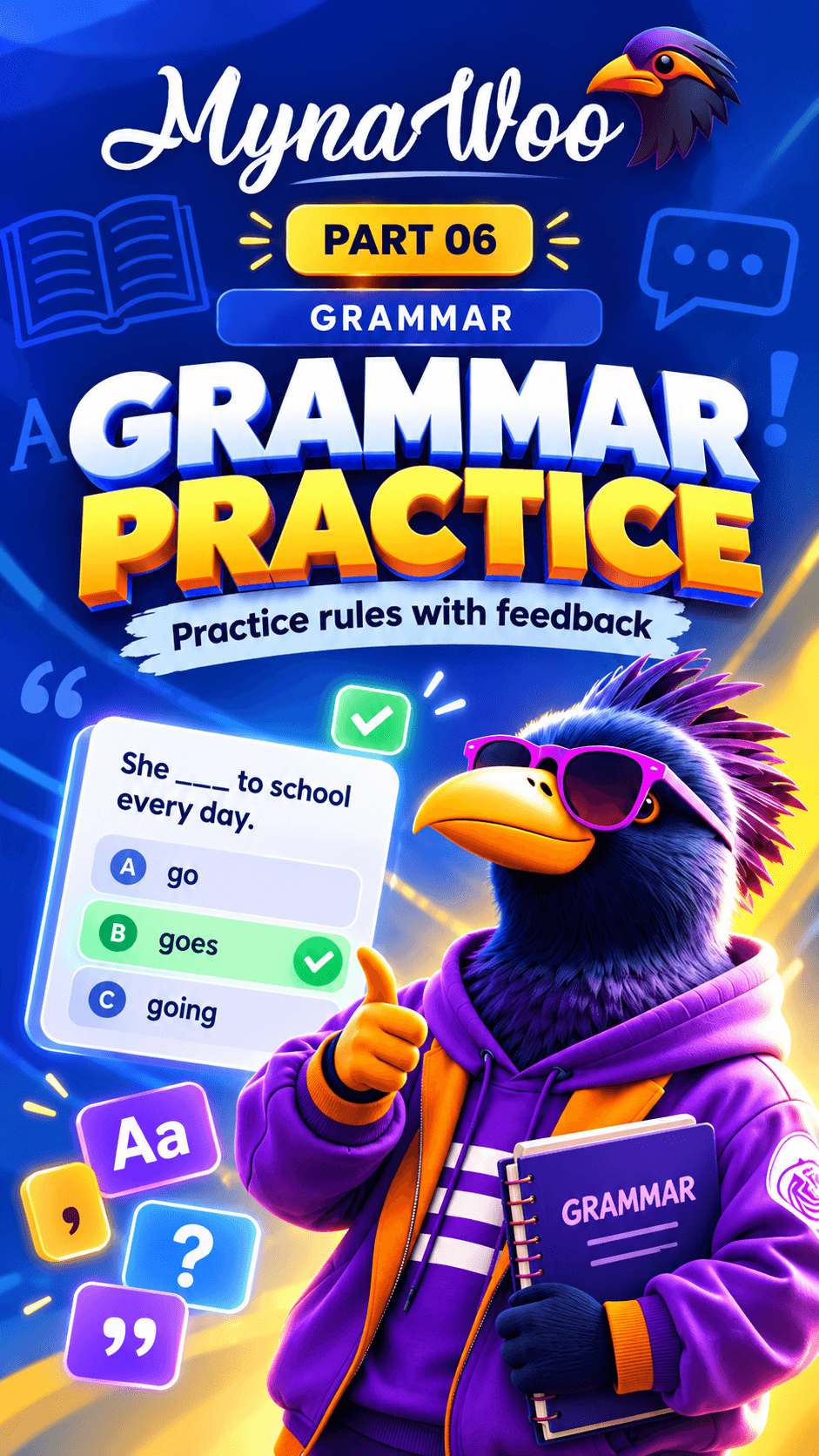
How to practise grammar with feedback
Answer grammar questions linked to your lessons and read why each answer is right.
 18 sec
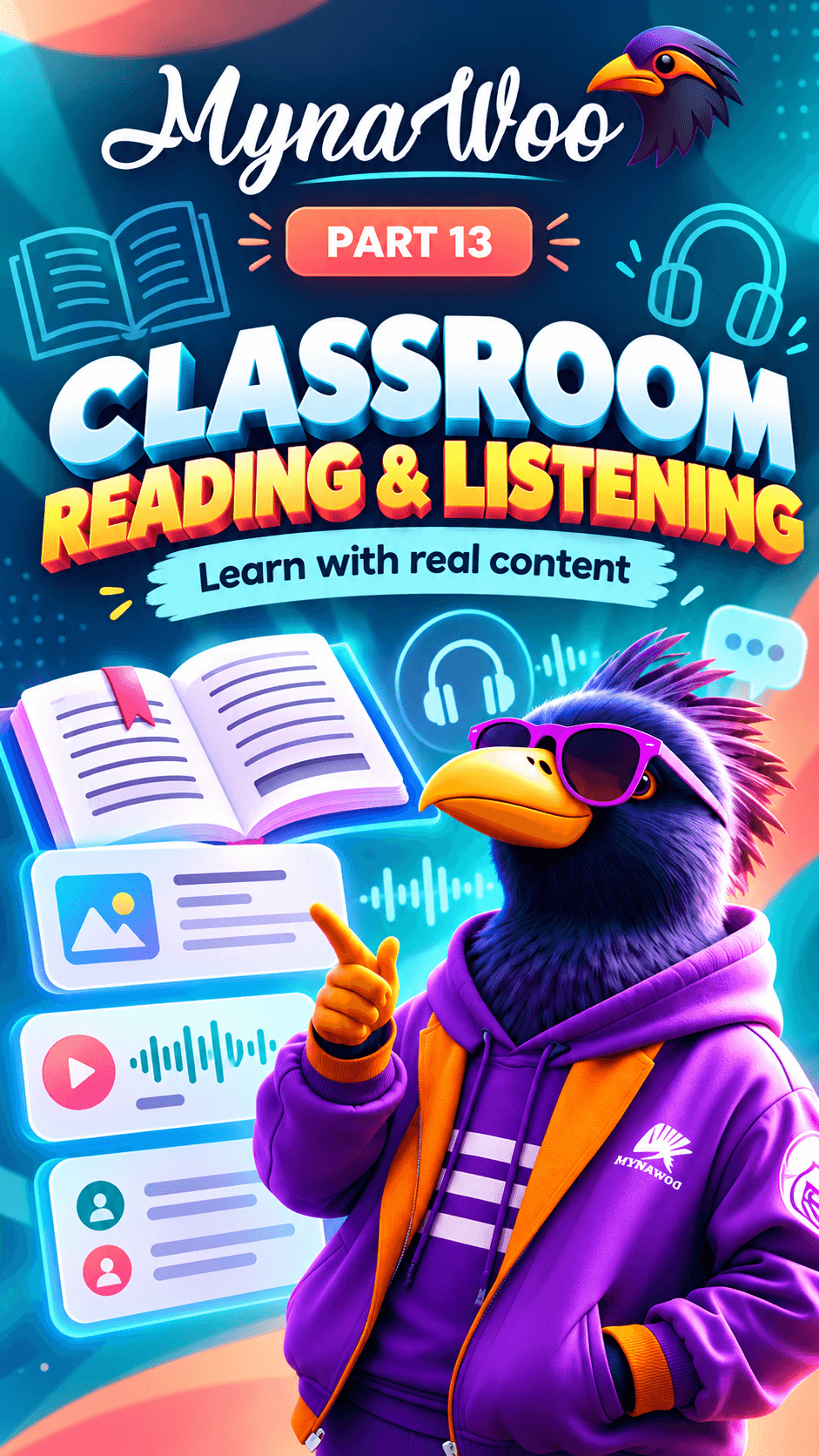
How to practise reading and listening comprehension
Read or listen to level-appropriate stories and answer comprehension questions.
 21 sec
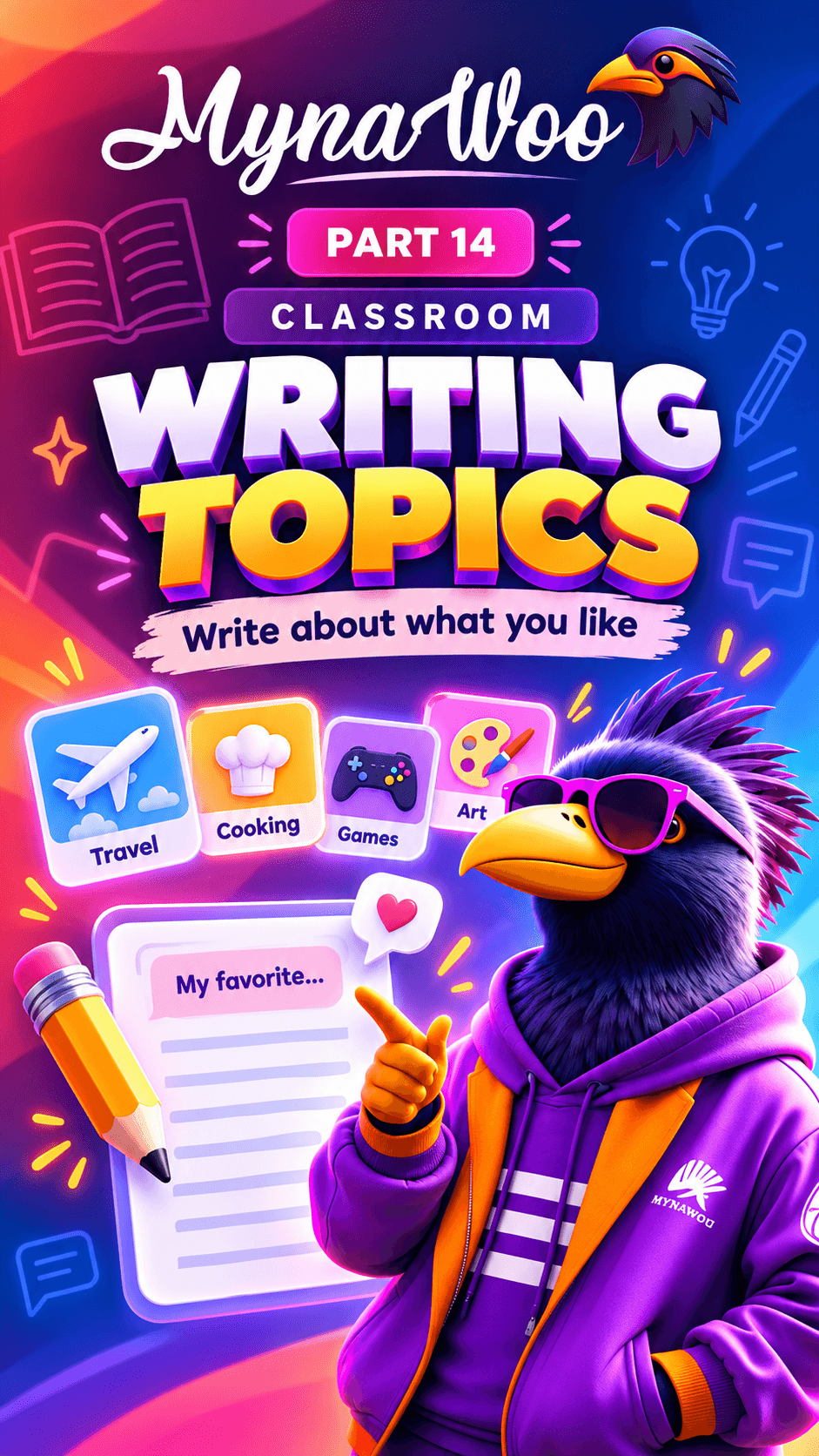
How to practise writing on topics you enjoy
Pick your interests and get writing prompts that match them and your level.
AI tools

Progress & analytics
 16 sec
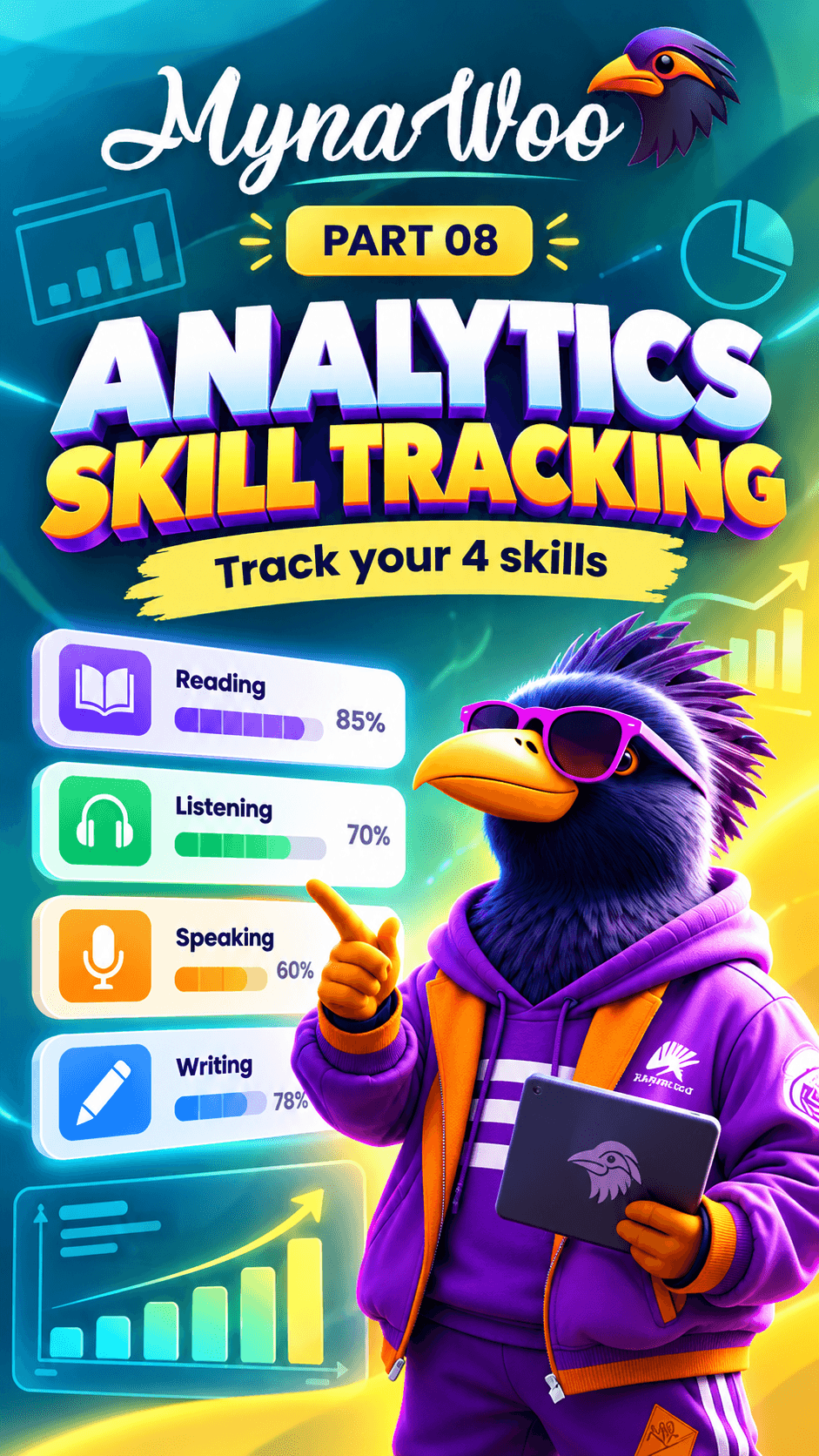
How to track your reading, listening, speaking and writing
See each of the four skills separately and find the one that needs work.
 17 sec
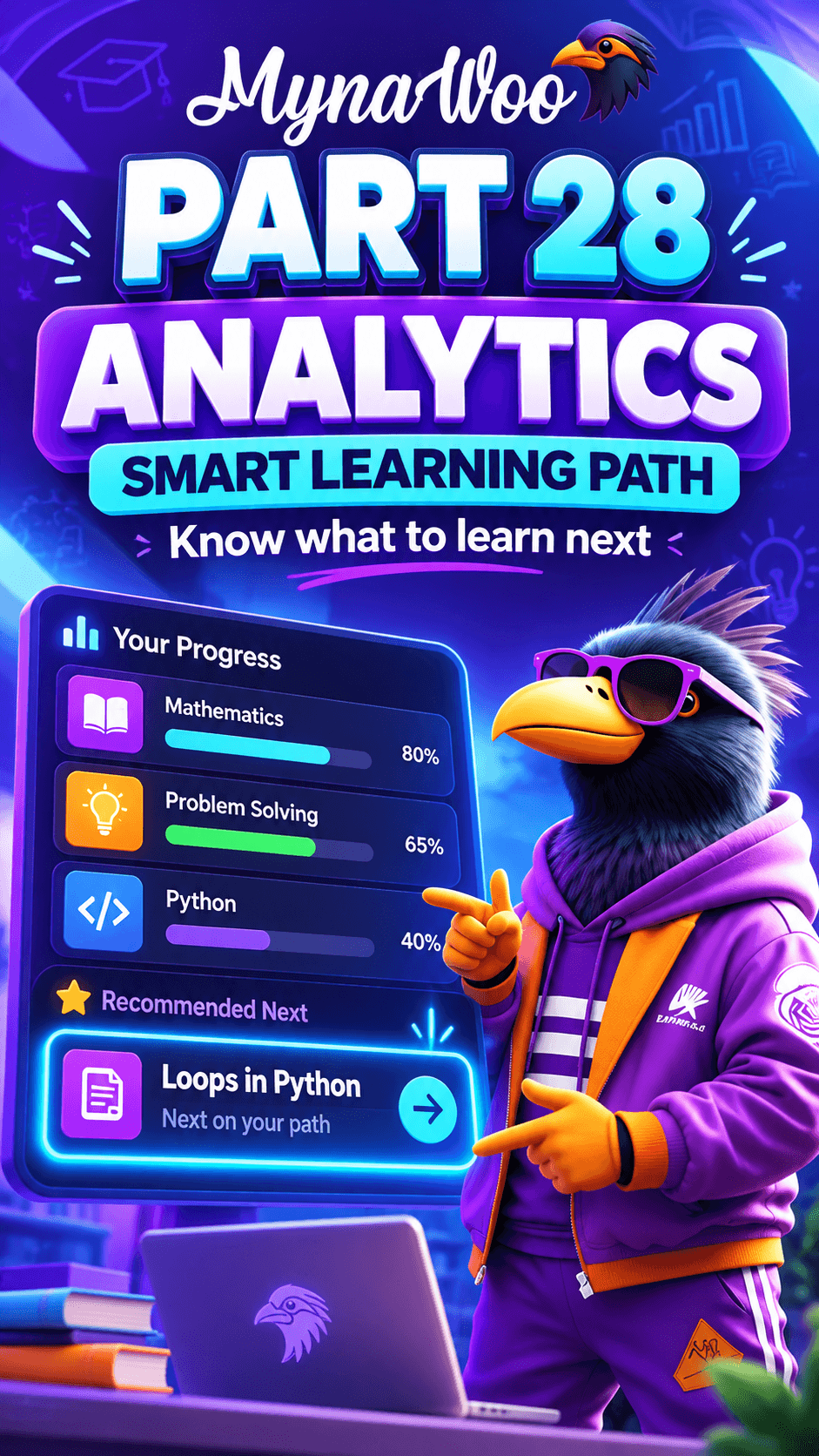
How Mynawoo recommends what to learn next
Let your skill results suggest the next activity instead of guessing.
 15 sec
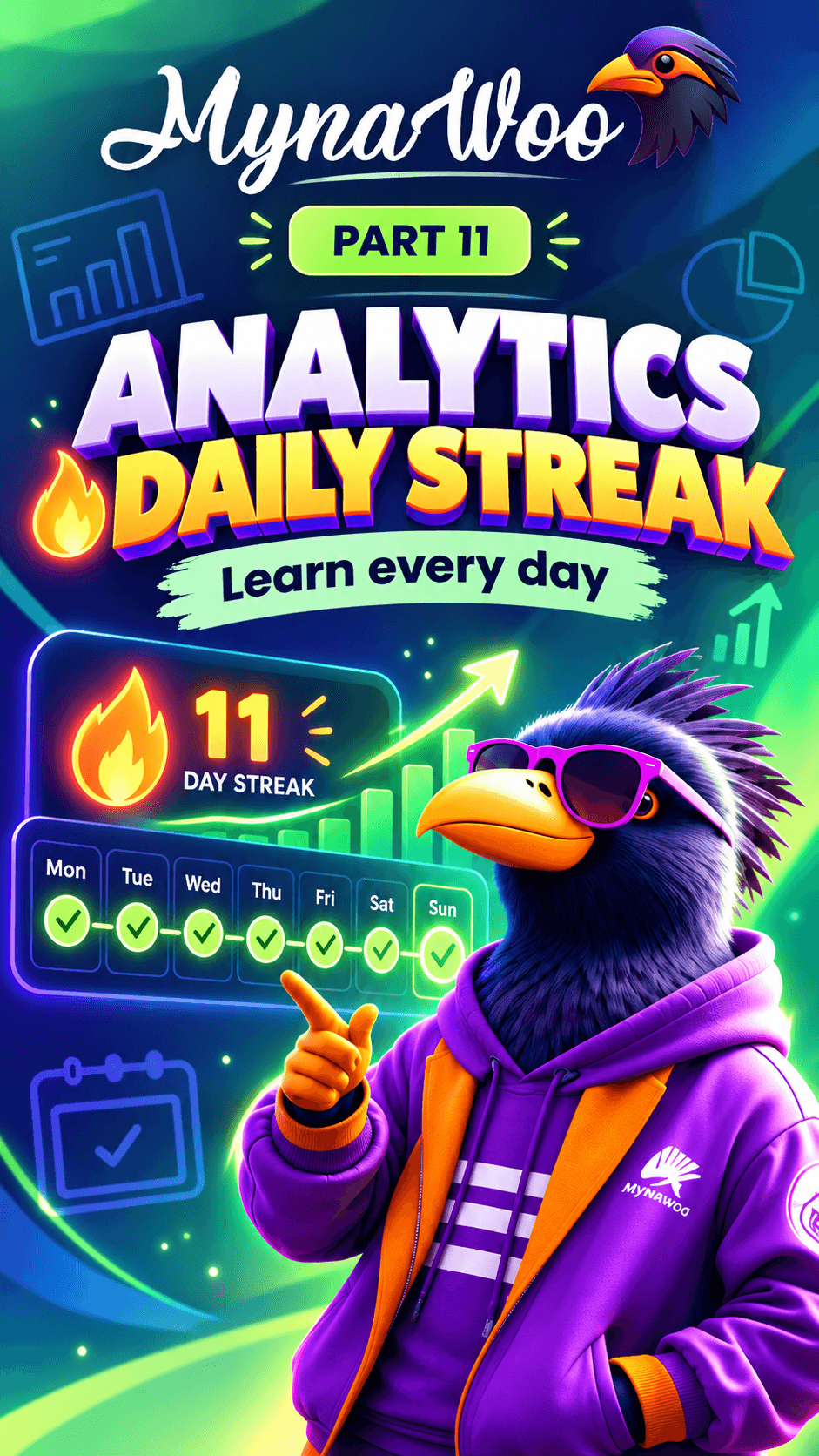
How to keep your daily learning streak
Complete one activity every day to grow your Day streak.
 15 sec
How to unlock and view your achievements
Reach skill milestones to unlock achievements and see them all in the Analysis tab.